


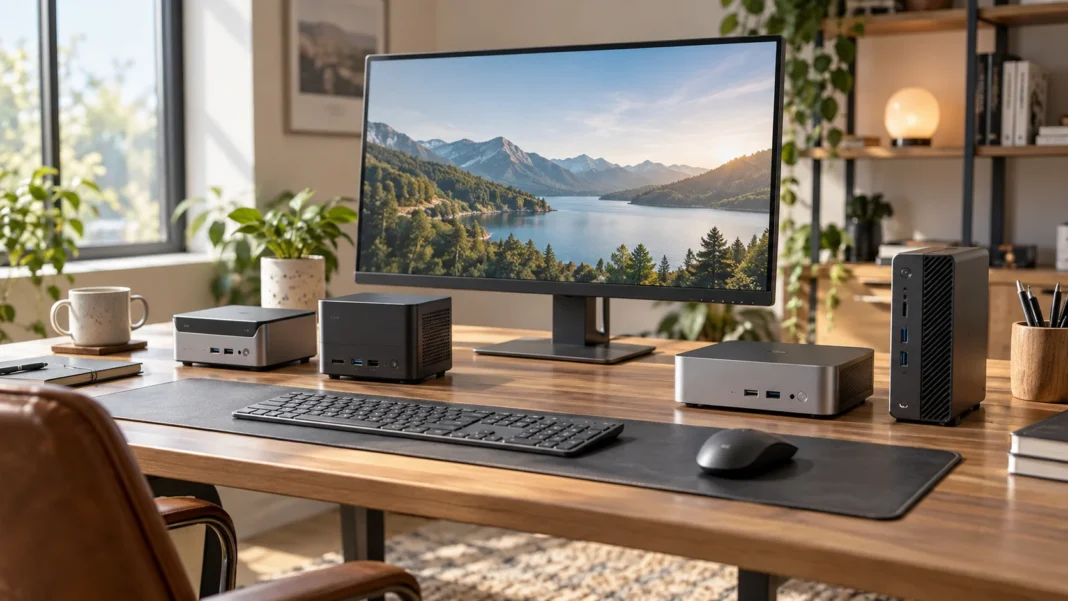
Mini PCs have become powerful enough to replace traditional desktop towers for many home and office users. Their compact designs take up very little desk space while still providing capable processors, fast solid-state storage, multiple display outputs, and enough memory for demanding everyday workloads. Some newer models can even handle creative applications, local AI tools, development work, and light or serious gaming.
The best mini PCs for work and home vary significantly depending on how you plan to use them. A simple office computer does not need the same graphics performance as a gaming system, while developers and creative professionals may prioritize memory expansion, USB4, fast networking, and additional storage slots. Choosing the right configuration can give you desktop-level flexibility without a large case.
Current models from Apple, ASUS, Minisforum, GEEKOM, and ROG cover almost every type of compact desktop user. Some prioritize quiet, efficient productivity, while others provide upgradeable RAM, multiple SSD slots, high-performance graphics, or extensive connectivity. Understanding your workload first makes it much easier to choose a mini PC that remains useful for several years.
What to Look for in a Mini PC
Processor performance should match your everyday workload rather than simply having the highest specification available. Basic office tasks, web browsing, video calls, and streaming work comfortably on midrange processors, while video editing, software development, local AI workloads, and heavy multitasking benefit from faster chips with more cores. Gaming also depends heavily on graphics performance rather than CPU specifications alone.
Memory and storage deserve equal attention. Sixteen gigabytes of RAM is a sensible starting point for many modern users, while 32GB or more can help when running creative applications, virtual machines, development environments, or numerous programs simultaneously. Look for NVMe SSD storage and check whether RAM or storage can be upgraded later, because some compact computers use permanently integrated memory.
Connectivity can determine whether a mini PC fits your desk without additional adapters. USB-C, USB4, Thunderbolt, HDMI, DisplayPort, Ethernet, Wi-Fi, and several USB-A connections are useful for monitors and accessories. If you plan to run two or three displays, verify the supported resolutions and outputs before buying instead of assuming every mini PC handles multiple monitors identically.
Apple Mac mini M4 for Mac Users and Everyday Productivity
Apple’s Mac mini M4 remains a strong compact desktop for users already comfortable with macOS. The redesigned chassis measures only about five inches square, making it considerably smaller than many conventional desktops. The standard M4 configuration combines a 10-core CPU, 10-core GPU, and 16GB of unified memory, providing plenty of performance for office applications, browsing, coding, photo work, and general creative tasks.
Connectivity is also practical for a small desktop. The M4 version includes front-facing USB-C ports and rear Thunderbolt 4 connections, while the M4 Pro configuration moves to Thunderbolt 5. HDMI and Ethernet are also available, and the system can support several high-resolution displays depending on the configuration, making it suitable for productivity-focused multi-monitor workstations.
The biggest limitation is upgradeability. Unified memory and internal storage should be chosen carefully when purchasing because they are not designed like ordinary user-replaceable desktop RAM and drives. If your work already revolves around iPhone, iCloud, Final Cut Pro, Logic Pro, or other Apple services, however, the Mac mini provides a compact and efficient way to build a permanent desktop.
ASUS NUC 15 Pro for Business and Office Work
The ASUS NUC 15 Pro is a practical Windows mini PC for offices, professional workstations, and home users who prefer a more traditional upgradeable computer. ASUS offers configurations using several Intel processors, including Core Ultra 5 and Core Ultra 7 options. This allows buyers to select performance according to whether the system will handle ordinary office applications or more demanding professional multitasking.
One advantage of the NUC format is flexibility. Kit versions can allow users or businesses to choose their own memory, storage, and operating-system setup, while complete configurations are available for people who want a ready-to-use machine. Support for Windows and selected Linux distributions also makes the platform useful for developers, administrators, and businesses with different software requirements.
The NUC 15 Pro is especially appealing when you want a small computer without giving up familiar PC functionality. It can sit on a desk, mount behind a compatible display, or work as part of a multi-computer business deployment. Users interested primarily in gaming should look toward systems with stronger dedicated graphics, but for productivity and office tasks, the NUC format remains highly practical.
Minisforum AI X1 Pro for Upgradeability and Power
The Minisforum AI X1 Pro is designed for users who want a compact Windows system with unusually strong expansion options. Current configurations use AMD Ryzen AI processors, including the Ryzen AI 9 HX 370 and newer HX 470 variants, paired with Radeon 890M integrated graphics. The system also includes dedicated NPU hardware intended for compatible AI workloads and modern Copilot+ features.
Upgradeability is one of its biggest strengths. Minisforum provides two DDR5 SO-DIMM memory slots and three M.2 storage positions, allowing users to expand both memory and storage far beyond what most sealed compact computers offer. Dual 2.5Gb Ethernet, USB4, HDMI, DisplayPort, Wi-Fi 7, an SD card slot, and OCuLink also give it considerable connectivity flexibility.
OCuLink is particularly interesting for enthusiasts because it can connect compatible external graphics hardware with more direct PCIe bandwidth than ordinary USB connections. That makes the AI X1 Pro useful for users who want strong integrated graphics today but may experiment with an external GPU later. It suits developers, power users, home labs, creators, and multitaskers who value expansion.
GEEKOM A9 Max for a Powerful AMD Mini PC
The GEEKOM A9 Max 2026 Edition is another performance-focused mini PC built around AMD’s newer Ryzen AI processors. Current versions are offered with Ryzen AI 9 HX 370 or HX 470 chips and Radeon 890M graphics. The compact metal chassis is designed for productivity, development, content creation, local AI workloads, and lighter gaming without requiring a full-size desktop tower.
The A9 Max provides two storage positions and upgradeable DDR5 memory, which gives users more flexibility than many tightly integrated mini desktops. Connectivity includes two USB4 ports, multiple USB-A connections, dual HDMI outputs, dual 2.5Gb Ethernet, Wi-Fi 7, Bluetooth, and an SD card reader. This port selection is especially useful for users running several displays, network equipment, and external storage simultaneously.
GEEKOM also positions the A9 Max as a system suitable for continuous professional workloads. Its relatively powerful integrated graphics mean it can handle more than spreadsheets and web browsing, although demanding AAA gaming still benefits from dedicated graphics. It is a sensible option for people who want strong Windows performance and upgradeable hardware without moving to a substantially larger desktop.
ROG NUC 2025 for Compact Gaming and Creative Work
The ROG NUC 2025 targets a very different user from most office-focused mini PCs. Instead of relying entirely on integrated graphics, available configurations combine Intel Core Ultra HX processors with NVIDIA GeForce RTX laptop GPUs, including options ranging through the RTX 50-series. This gives the compact system substantially more gaming and GPU-accelerated creative capability than typical miniature desktops.
Memory and storage remain upgradeable, with configurations supporting substantial DDR5 capacity and NVMe SSD storage. Connectivity includes Thunderbolt, USB, Ethernet, Wi-Fi, and dedicated display outputs, making it possible to build a serious gaming or creative workstation around the small chassis. It can therefore replace a much larger desktop for users who value compactness more than traditional component-level customization.
The main drawback is cost. Once high-end processors and powerful discrete graphics are added, the price can exceed that of many conventional desktops offering similar or greater performance. The ROG NUC makes the most sense when small size is a major requirement, such as a compact gaming room, living-room setup, creative workstation, or premium desk with limited physical space.
Mini PCs for Home Offices and Remote Work
A mini PC can create a cleaner home office because the computer itself occupies very little desk space. Some systems can be mounted behind a monitor, leaving more room for notebooks, speakers, external drives, and other equipment. Pairing the PC with a comfortable keyboard, mouse, webcam, and appropriately positioned monitor can create a workstation that feels less cluttered than a laptop-centered setup.
For remote work, prioritize reliable networking and enough ports for the accessories you use every day. Ethernet can provide a stable connection for video calls, while Wi-Fi 6E or Wi-Fi 7 offers flexibility when running cables is inconvenient. Multiple display outputs are useful for people working with analytics, spreadsheets, design tools, coding environments, or communication apps across several screens.
A work-from-home setup can also include technology focused on personal wellness rather than only productivity. If you enjoy monitoring sleep, recovery, activity, or other everyday metrics away from the desk, comparing smart rings can provide another compact technology option. The mini PC itself can remain the central workstation while smaller wearables support broader daily routines.
How Much RAM and Storage Does a Mini PC Need?
For basic browsing, office software, streaming, and light home use, 16GB of RAM provides a comfortable starting point for most people. Eight gigabytes can still work for very simple tasks, but modern browsers and operating systems can consume memory quickly. Choosing more RAM from the beginning often makes sense if you regularly keep many tabs and applications open simultaneously.
Thirty-two gigabytes is more appropriate for heavier multitasking, creative software, software development, virtual machines, or advanced professional use. Sixty-four gigabytes or more is usually unnecessary for ordinary home users but can benefit specialized workflows such as large development environments, engineering applications, virtualized servers, data analysis, or certain local AI workloads.
Storage needs depend heavily on how much data you keep locally. A 512GB SSD is workable for office use, while 1TB provides more flexibility for photos, applications, games, and project files. Users handling large video libraries or multiple games may prefer 2TB or more, especially when the mini PC offers additional internal M.2 slots for future expansion.
Ports and Display Support Matter More Than Size
Mini PCs are small, but that does not mean they should have limited connectivity. A useful system should provide enough ports for your keyboard, mouse, storage devices, monitors, webcam, audio equipment, and other accessories. Constantly connecting hubs can reduce the convenience of choosing a compact desktop, so count the peripherals you regularly use before purchasing.
USB4 and Thunderbolt are particularly useful because they can support high-speed storage, docks, displays, and other advanced peripherals through a single compact connector. HDMI and DisplayPort remain convenient for monitors and televisions, while 2.5Gb Ethernet is valuable for fast home networks, NAS storage, and large local file transfers.
Check display limitations carefully if you use several monitors. Supporting three physical video connectors does not always mean the system can drive all three at your desired resolution and refresh rate simultaneously. Creative users, traders, developers, and multitaskers should confirm the manufacturer’s display-support specifications rather than discovering limitations after building the rest of the workstation.
Mini PC vs Laptop vs Full-Size Desktop
Mini PCs make the most sense when you want a permanent workstation but do not need the portability of a laptop. You provide your own monitor, keyboard, mouse, and usually webcam, which allows each component to be chosen separately. This can create a more comfortable long-term workspace than using a laptop display and built-in keyboard for many hours each day.
A laptop remains the better choice when the computer regularly moves between home, office, university, client locations, or travel. A mini PC is technically portable because of its small size, but it still depends on external displays and peripherals. Moving the entire setup regularly can quickly become less convenient than carrying one self-contained notebook.
Full-size desktops still offer the greatest flexibility for component upgrades, powerful graphics cards, large cooling systems, and extensive internal storage. A mini PC is therefore a compromise between laptop-style compactness and desktop functionality. For ordinary productivity and home use, that compromise is often excellent; for extreme gaming or workstation expansion, a tower can remain more practical.
Best Practices Before Buying a Mini PC
Start by listing the applications you use rather than shopping by processor name alone. Office users may prioritize low noise, Wi-Fi, and multiple monitors, while creators need memory, storage, and faster graphics. Gamers should focus on GPU performance, and developers may value Linux support, memory expansion, networking, or multiple SSD slots more than visual design.
Check whether the listed configuration includes RAM, storage, and an operating system. Some mini PCs are sold as barebones kits, which means you must provide memory, SSD storage, and sometimes the operating system separately. Barebones systems can offer greater control and value for experienced users, but complete systems are easier for buyers who want something ready immediately.
Finally, consider warranty support, cooling, replacement parts, and future upgrades. Extremely small computers concentrate significant heat into limited space, so cooling design matters during long workloads. Choosing a model with accessible RAM and storage can also extend useful life because upgrading a component later may cost much less than replacing the entire computer.
Conclusion
The best mini PCs for work and home now cover everything from basic productivity to gaming and demanding professional workloads. Apple’s Mac mini M4 provides a compact macOS option, while the ASUS NUC 15 Pro suits Windows business environments. Minisforum AI X1 Pro and GEEKOM A9 Max provide strong AMD performance with considerably more upgrade flexibility.
Users who want serious graphics performance in a small chassis can consider the ROG NUC, although its cost makes it more specialized than ordinary home-office models. For most buyers, a good mini PC does not need extreme specifications. Enough RAM, fast SSD storage, reliable networking, and the right display outputs will matter more during everyday use.
Before buying, match the processor, memory, storage, graphics, and ports to your actual workload. Consider whether the hardware can be upgraded and whether your monitors and peripherals connect without complicated adapters. A thoughtfully selected mini PC can provide years of capable desktop performance while using only a fraction of the physical space required by a traditional tower.
FAQs
Are mini PCs powerful enough for everyday work?
Yes. Modern mini PCs can comfortably handle web browsing, office applications, video calls, streaming, and multitasking. Higher-performance models can also manage coding, creative applications, AI tools, and other demanding professional workloads.
How much RAM should a mini PC have?
Sixteen gigabytes is a practical starting point for most users. Choose 32GB or more if you frequently run creative software, virtual machines, large development tools, or demanding multitasking workloads.
Can a mini PC replace a desktop computer?
Yes, for many users. Mini PCs provide desktop-style monitors, keyboards, storage, and ports in a smaller enclosure. Full-size desktops remain better when extensive component upgrades or very powerful graphics cards are required.
Are mini PCs good for gaming?
Some are. Integrated-graphics mini PCs can handle lighter or optimized games, while systems such as the ROG NUC include dedicated graphics for substantially stronger gaming performance. Check the GPU before buying.
Can I upgrade a mini PC later?
It depends on the model. Many Windows mini PCs allow RAM and SSD upgrades, while highly integrated systems such as the Mac mini offer fewer user-upgrade options. Always check expandability before purchasing.