


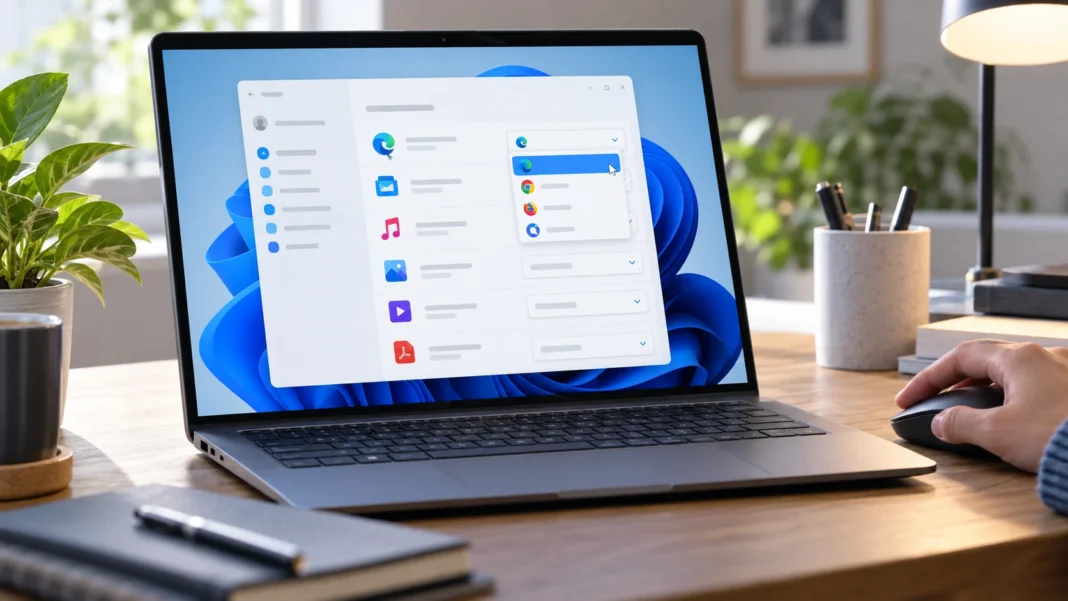
What Are Default Apps in Windows 11?
Default apps are the programs Windows 11 automatically uses when you open certain file types, links, or content. For example, one app may open PDF files, another may play videos, and a specific browser may handle web links. Setting the right defaults saves time because you do not have to manually choose an application every time you open something.
Windows can assign default applications based on individual file extensions such as .pdf, .jpg, .mp3, or .html. It can also associate certain link types and protocols with specific programs. This gives users more control over how different kinds of content are handled rather than forcing one application to manage everything within a broader category.
Changing default apps is especially useful after installing a new browser, media player, photo editor, or document reader. Windows may continue using the previous program unless you update the association manually. Once the correct defaults are configured, files and links should open in your preferred applications automatically, creating a smoother everyday Windows experience.
Open the Default Apps Settings
The main place to change default apps in Windows 11 is inside the Settings application. Open the Start menu and select Settings, or press Windows + I on your keyboard. From there, choose Apps and then select Default apps. This section displays installed applications and provides several ways to control which programs open different types of content.
You can search for an application by name if you already know which program you want to make the default. For example, typing the name of your preferred browser or PDF reader will show the file types and link types associated with that application. Selecting one of these entries allows you to review or change the current default.
You can also search by file type when you know the extension but not the application currently assigned to it. This is useful for changing how specific files open without affecting other formats. Windows 11 provides detailed control, so you can choose one app for images, another for videos, and another for documents according to your preferences.
Change the Default App for a Specific File Type
If you want to change the app that opens one particular file type, search for that extension inside Default apps. For example, you can search for .pdf, .jpg, .mp4, or another format. Windows will show the program currently assigned to that file type, allowing you to choose a different installed application.
Select the current default and choose the program you want to use instead. Depending on your Windows version and installed software, you may see a list of compatible applications. Pick the appropriate option and confirm the change. From that point forward, files using that extension should open automatically with your newly selected program.
This method is particularly useful when one application supports many formats but you only want to change a single association. For example, you might prefer one photo viewer for .jpg images but keep another program for .png files. File-type-specific defaults provide more precise control than changing an entire category of applications at once.
Change Default Apps by Application
Windows 11 also allows you to manage defaults from the perspective of a particular application. In the Default apps section, search for the program you want to configure and select it. Windows will display the file extensions and link types that the application can potentially handle. You can then choose which ones should open with that program.
This approach is useful when you install a new app and want to make it responsible for several file types. For example, a media player may support audio, video, playlists, and other formats. Reviewing the application’s list allows you to assign the formats you want without searching for each extension separately through the broader settings menu.
Not every application supports every file type, so Windows will only show compatible associations. Some apps may also include a button to make themselves the default for common supported formats. Even then, it is useful to review the individual assignments afterward. This ensures Windows is using your preferred program for the exact files and links you regularly open.
Change the Default Web Browser
Changing the default browser is one of the most common reasons people open Windows 11 default app settings. If you prefer Chrome, Firefox, Edge, or another browser, search for that browser in the Default apps section. Select it to review the web-related extensions and protocols the browser can handle.
Some Windows 11 versions provide a button that lets you make the selected browser the default for common web files and links. Using this option can quickly update several associations at once. Afterward, clicking ordinary web links from compatible applications should open them using the browser you selected rather than the previous default browser.
If certain links still open elsewhere, review associations such as HTTP, HTTPS, .html, and .htm individually. Some system behaviors or special Windows links may work differently from normal web links. However, standard website links should generally follow the browser defaults you set. Testing a few links after making the change can confirm everything is working as expected.
Change the Default PDF Reader
PDF files often open in the browser or another built-in application unless you select a dedicated PDF reader. To change this, open Default apps and search for .pdf. Select the current application and choose your preferred PDF program. After confirming the change, PDF documents should begin opening with the new reader automatically.
You can also search for the PDF application itself and review its supported file types. This is useful if the software handles additional document formats that you also want associated with it. Some PDF programs include their own setting for becoming the default reader, but using Windows Settings provides a central place to confirm the association.
If PDFs continue opening in your browser after changing the Windows default, check the browser’s download and PDF settings. Some browsers are configured to display PDF documents directly inside a tab. Changing that behavior can make downloaded PDFs open externally with your preferred Windows PDF application instead of continuing to use the browser’s built-in viewer.
Change Default Apps for Photos
Windows 11 normally uses a photo application to open common image formats, but you can replace it with another viewer or editor. Search for an image extension such as .jpg, .jpeg, .png, or .webp in Default apps. Select the current program and choose the photo application you want to use instead.
Different image formats can use different default programs if that suits your workflow. For example, you might open ordinary photos in a lightweight image viewer while sending certain design formats directly to an editing application. Windows does not require every image type to use the same program, giving you flexibility to configure defaults according to how you work.
If you want one application to handle most image formats, search for the application by name and review all supported image extensions. Change each relevant association to that program. This takes a little more time but creates a consistent experience. Once configured, double-clicking supported images in File Explorer should open them using your chosen application.
Change Default Apps for Music and Video
Windows 11 can use different applications for audio and video depending on the file format. If you prefer a specific media player, open Default apps and search for formats such as .mp3, .wav, .mp4, .mkv, or .avi. Select the current program and replace it with your preferred media player.
You can also search for the media player itself and assign several supported formats from one place. This approach is convenient when you want the same app to handle most music and video files. Review the list carefully because some media players support many extensions, including playlists and less common formats you may not use regularly.
After changing the associations, test several files from File Explorer. If a file does not open correctly, the new application may not fully support that specific format or codec. In that case, choose another compatible program for that extension. Windows lets you mix defaults rather than forcing every media file into a single player.
Use Open With to Change a Default App
Another quick way to change a default program is through the Open with menu in File Explorer. Right-click a file, choose Open with, and then select another app. This method is convenient when you are already looking at the file and do not want to navigate through Windows Settings first.
If Windows shows an option to always use the selected app for that file type, enable it before confirming. The wording may vary slightly depending on your Windows 11 version. Once selected, other files using the same extension should open with the chosen program automatically until you change the association again.
Use this method carefully when multiple programs support the same format. Choosing an app once does not always change the permanent default unless you explicitly select the option to make it permanent. If the setting does not stick, return to Settings > Apps > Default apps and change the file association there for more reliable control.
Change Defaults for Link Types and Protocols
Windows 11 does not only associate programs with file extensions. It also uses protocols such as HTTP, HTTPS, MAILTO, and other link types to determine which applications should respond when specific links are clicked. These settings are important for browsers, email applications, communication tools, and other programs that handle links rather than ordinary files.
You can review protocol associations through the Default apps settings. Search for the relevant application or link type and check which program is currently assigned. For example, changing a MAILTO association can determine which email application opens when you click an email address on a website or inside another program.
Be cautious when changing unfamiliar protocols because some are tied to specific Windows features or software. There is usually no benefit in modifying an association you do not recognize. Focus on protocols that directly affect your workflow, such as web browsing, email, or communication links. Keeping changes intentional reduces the chance of unexpected behavior.
What to Do If Your Preferred App Is Not Listed
Sometimes the application you want does not immediately appear in the list of available defaults. First, confirm that the program is properly installed and can open the file type manually. Launch the application once and check whether it offers an option to register itself with Windows or become the default for supported formats.
If the app is installed but still missing, use the Open with menu from File Explorer and look for an option to choose another application. Windows may allow you to browse for the program’s executable file manually. This can help when portable applications or less common programs have not automatically registered their supported file associations with the operating system.
Restarting Windows after installation may also help certain programs appear correctly in Default apps. If the application still cannot be selected, it may not officially support that file type or may require additional configuration. Check the software’s own settings before forcing an association that could prevent files from opening correctly.
Fix Default Apps That Keep Changing
If your default apps keep changing unexpectedly, first check whether a recently installed or updated program is trying to make itself the default. Some applications display prompts asking to become the preferred browser, media player, or document reader. Decline these requests if you want to preserve your existing Windows associations.
Major software updates can occasionally reset or modify certain file associations. If this happens, return to Default apps and reassign the affected file types. Make changes gradually and observe whether a particular application repeatedly takes over the association. Unwanted behavior may be linked to that program’s own settings rather than Windows itself.
If many defaults change at once or Windows settings behave unpredictably, restart the computer and make sure Windows is updated. Corrupted system settings can occasionally create unusual behavior, although this is less common. Avoid using aggressive third-party optimization tools because they may change file associations or system settings without making those changes obvious.
Reset Default Apps to Microsoft Recommended Settings
Windows provides an option to reset many default app associations to Microsoft-recommended settings. This can be useful if numerous file types have been assigned incorrectly or you are troubleshooting unusual behavior. Open Default apps and look for the reset option. Confirming it will restore common file and link associations to their standard Windows choices.
Keep in mind that resetting defaults may undo custom selections you intentionally configured. Your preferred browser, PDF reader, photo viewer, or media player may no longer be the default afterward. Use the reset function when you want a clean starting point rather than as the first solution for one incorrect file association.
After resetting, go back through your most important file types and reassign them carefully. Start with the programs you use every day, such as your browser and document reader. This approach can resolve messy or conflicting associations while still allowing you to restore your preferred workflow afterward without reinstalling applications or changing personal files.
Tips for Managing Default Apps Efficiently
Keep your default app setup simple whenever possible. Using one reliable browser, one main media player, and one primary document reader can reduce confusion when opening files. Specialized programs can still be assigned to particular formats when needed. A clear setup makes it easier to understand which application should open each type of content.
Review defaults after installing major software that handles common files. Browsers, office applications, photo editors, and media players may request control of several extensions during installation. Pay attention to these prompts rather than accepting every option automatically. Maintaining intentional associations prevents applications you rarely use from becoming the default unexpectedly.
It is also helpful to test file associations immediately after changing them. Open several representative files and links to make sure Windows is using the correct program. If something behaves differently from expected, return to Default apps and adjust the specific extension or protocol. Small checks can prevent confusion later when you need to open an important file quickly.
Conclusion
Changing default apps in Windows 11 allows you to control which programs open your files, links, music, videos, images, documents, and web content. The main settings are available under Settings > Apps > Default apps. From there, you can choose defaults by application, file extension, or supported link type according to your preferences.
For quick changes, the Open with menu in File Explorer can also be useful, especially when you already have the relevant file in front of you. More complex setups may require adjusting multiple extensions individually. Taking a few minutes to configure your browser, PDF reader, photo viewer, and media player can make everyday computer use noticeably smoother.
If default associations become confusing or inconsistent, Windows can reset them to recommended settings so you can start again. Avoid modifying unfamiliar protocols or forcing unsupported apps to open certain files. By making careful, intentional choices, you can customize Windows 11 so the applications you actually prefer are used automatically.
FAQs
How do I change the default app in Windows 11?
Open Settings, choose Apps, and select Default apps. Search for the application or file extension you want to change, then select the current default and choose your preferred program.
How do I change the default browser in Windows 11?
Open Default apps, search for your preferred browser, and select it. Use the available default option or assign common web protocols and file types such as HTTP, HTTPS, .html, and .htm.
How do I change which app opens a specific file type?
Search for the file extension in Default apps, such as .pdf or .jpg. Select the currently assigned program and choose another compatible application from the available list.
Why does Windows keep opening files with the wrong app?
The file type may still be associated with another program, or a recently installed application may have changed the default. Review the specific extension in Windows Default apps settings.
Can I reset all default apps in Windows 11?
Yes. Windows includes an option to reset default app associations to Microsoft-recommended settings. After resetting, you can manually change important defaults again to match your preferred workflow.