


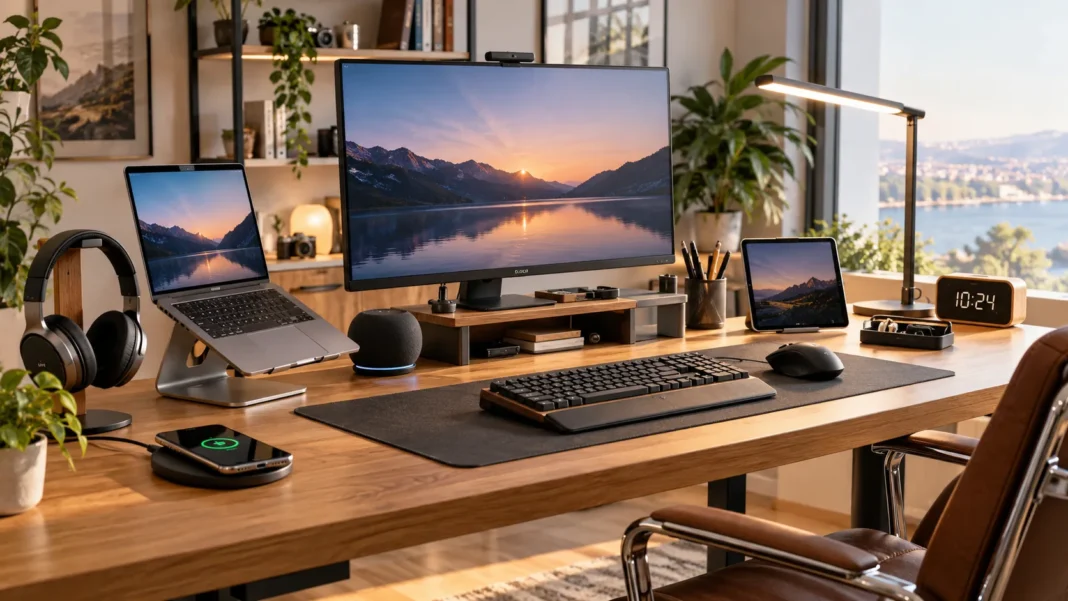
A smarter workspace is not about filling your desk with random technology. The best desk gadgets solve small everyday problems, reduce clutter, improve comfort, and help you stay focused for longer periods. Whether you work from home, manage a busy office, study online, or switch between multiple devices, the right accessories can make your desk easier and more enjoyable to use.
From wireless chargers and monitor lights to ergonomic stands, cable organizers, smart speakers, and compact computers, useful desk technology can support both productivity and comfort. The key is choosing gadgets that match how you actually work. This guide explores practical desk gadgets worth considering and explains how each one can improve a modern workspace without making it unnecessarily complicated.
Wireless Charging Stands for Everyday Convenience
A wireless charging stand can keep your smartphone powered while leaving the screen visible for notifications, calls, calendars, or authentication prompts. Instead of searching for a cable every time the battery drops, you can simply place the phone on the stand. This makes charging feel like a natural part of your desk setup rather than another task to remember.
Charging stands are especially useful for people who frequently check their phones during work. Unlike flat charging pads, an upright design keeps the display easy to see without requiring you to pick up the device. Some stands also support horizontal positioning, which can be convenient for video calls, media playback, or using your phone as a secondary information display.
When choosing a wireless charger, consider charging speed, device compatibility, stability, and whether the stand works with your phone case. A poorly designed stand can slide around the desk or fail to align correctly with the charging coil. A simple, dependable model is often more useful than one overloaded with unnecessary lighting or controls.
Monitor Light Bars for Better Desk Lighting
Monitor light bars provide focused desk illumination without taking up the space required by a traditional lamp. They attach to the top of your monitor and direct light toward the desk surface rather than into your eyes. This design can be especially useful in smaller workspaces where every inch of desk space matters.
Good lighting can make reading notes, working with documents, or using a keyboard more comfortable during evening work sessions. Many monitor lights offer adjustable brightness and color temperature, allowing you to choose warmer or cooler lighting depending on the time of day. This flexibility can help create a workspace that feels more comfortable without completely illuminating the room.
A monitor light bar works best when it avoids screen glare and remains stable on your display. Check monitor thickness and compatibility before purchasing because some mounts work better with flat screens than curved displays. Models with simple touch controls or a wireless adjustment dial can also make brightness changes more convenient during busy workdays.
Laptop Stands for Better Screen Positioning
A laptop stand raises your computer screen closer to eye level, helping create a more comfortable viewing position. Working for hours with a laptop placed flat on a desk can encourage you to lean forward or look downward. Elevating the screen can make it easier to maintain a more relaxed head and neck position during longer sessions.
Laptop stands can also improve airflow around the computer. Many designs leave space underneath the device, allowing heat to escape more easily than when the laptop sits directly against a flat surface. This can be useful for people running demanding software, participating in long video calls, or working in warmer environments where laptops become noticeably hot.
If you use an elevated stand regularly, pairing it with an external keyboard and mouse usually creates a more practical setup. Adjustable stands provide greater flexibility because you can change height or angle according to your chair and monitor position. Stability is equally important, especially if you frequently type directly on the laptop while it is elevated.
USB-C Hubs and Docking Stations
Modern laptops often provide fewer ports than professionals actually need. A USB-C hub can expand one connection into additional USB ports, HDMI outputs, memory card readers, Ethernet connections, and power delivery. This makes it easier to connect monitors, keyboards, external drives, cameras, and other equipment without repeatedly swapping cables.
Docking stations are particularly useful for people who move between mobile and desktop work. You can connect multiple peripherals to the dock and then attach your laptop using a single cable when you sit down. This reduces setup time and keeps your workspace more organized, especially when external displays and wired accessories are used every day.
Check your laptop’s port capabilities before buying a dock because not every USB-C connection supports the same features. Display output, charging speed, and data transfer rates can vary depending on the computer and hub. Choosing a compatible model prevents frustration and ensures your desk setup works consistently instead of requiring constant troubleshooting.
Cable Management Gadgets for a Cleaner Desk
Cable clutter can make even an expensive workspace feel disorganized. Cable clips, sleeves, trays, ties, and under-desk organizers help route chargers and power cords away from your main working area. Keeping cables controlled also makes it easier to clean the desk and prevents frequently used wires from falling behind furniture.
An under-desk cable tray is particularly effective for power strips and bulky adapters. Instead of leaving them visible on the floor or desktop, the tray keeps everything grouped underneath the desk. Small adhesive clips can then guide charging cables toward the areas where you actually need them, creating a cleaner and more functional setup.
Avoid overcomplicating cable management by hiding every wire permanently. Some devices need to be disconnected or moved frequently, so those cables should remain accessible. The best system separates permanent connections from everyday charging cables, keeping the workspace tidy while still allowing you to change devices without dismantling your entire setup.
Smart Speakers and Voice Assistants
A compact smart speaker can become a useful hands-free desk assistant. You can use voice commands to set timers, check schedules, control compatible smart devices, play background music, or create quick reminders. These small actions can reduce interruptions when your hands are busy typing, drawing, or working with other equipment.
Smart speakers are also convenient for simple productivity routines. You might set a focus timer, start a playlist, control desk lighting, or ask for a quick unit conversion without opening another browser tab. Used thoughtfully, voice control can remove small distractions rather than creating another screen competing for your attention.
Privacy settings should be reviewed when placing voice-enabled technology in a workspace. Familiarize yourself with microphone controls, account settings, and any physical mute button available on the device. If you regularly handle confidential meetings or sensitive information, consider when the microphone should remain disabled rather than leaving voice features active continuously.
Compact Keyboards and Ergonomic Mice
A comfortable keyboard and mouse can make a noticeable difference when you spend several hours working at a desk. Compact keyboards reduce the distance your mouse hand needs to travel, while ergonomic mice can provide an alternative hand position for users who find conventional designs uncomfortable. The ideal setup depends on your hand size, typing habits, and daily workload.
Mechanical keyboards appeal to some professionals because they offer distinctive key feedback and extensive customization. Others prefer low-profile wireless keyboards that remain quiet and take up less desk space. Rather than choosing based on trends, focus on key spacing, layout, typing feel, connectivity, and whether the keyboard supports all functions you regularly use.
Wireless peripherals can also make the desk look cleaner by reducing visible cables. However, battery life and connection reliability become additional considerations. Devices that support both Bluetooth and dedicated wireless receivers can provide more flexibility when switching between computers, tablets, or other equipment throughout your workday.
Mini PCs for Space-Saving Workstations
A mini PC can provide desktop computing power without taking up the space required by a traditional tower. These compact systems fit easily on small desks, behind monitors, or on shelves, making them useful for minimalist workspaces. They can handle many everyday tasks such as office applications, browsing, video calls, content management, and general productivity.
People building a compact workstation may find mini PCs especially useful when they want a dedicated desktop setup without a large computer case. The small footprint leaves more room for monitors, notebooks, accessories, and other equipment. Some models can even be mounted behind a display to keep the desk almost completely clear.
Before choosing a mini PC, check the processor, memory, storage, available ports, and upgrade options. Compact size does not automatically mean every model is suitable for demanding creative or technical work. Match the computer to your actual applications, and consider whether you need additional performance for development, editing, design, or multitasking.
Desk Fans and Climate Gadgets
A small desk fan can make working more comfortable during warm weather without cooling an entire room. USB-powered models are convenient because they can run from a computer, hub, charger, or power bank. Adjustable speeds allow you to choose gentle airflow without creating excessive noise during calls or focused work.
Some climate gadgets combine fans with temperature displays, humidifiers, or air-quality monitoring features. These additions can be useful in certain workspaces, but they should solve a genuine need rather than simply occupy more desk space. A straightforward fan may be the better option if your main goal is staying comfortable during long sessions.
Noise level matters significantly for any device placed close to your keyboard or microphone. A powerful fan that produces constant mechanical noise can become distracting during meetings or concentration-heavy work. Look for stable construction and quieter operation so the gadget improves comfort without becoming another source of workplace irritation.
Desk Clocks and Focus Timers
A dedicated desk timer can help you manage work sessions without constantly checking your phone. Simple digital timers are useful for techniques that divide work into focused blocks followed by short breaks. Keeping time visible can also provide a gentle reminder to stand, stretch, or switch tasks after extended periods of concentration.
Some smart desk clocks combine timers with alarms, calendars, temperature readings, or wireless charging. These multifunction devices can be convenient when they replace several separate accessories. However, a gadget becomes less useful if it requires complicated menus every time you want to start a basic timer, so simplicity should remain a priority.
Physical timers can be particularly helpful for people who become distracted after unlocking their phones. Instead of opening a timer application and then checking messages or social media, you can start a session directly from the desk. This small separation can support better focus by reducing opportunities for unnecessary digital distractions.
Monitor Arms and Adjustable Mounts
A monitor arm allows you to adjust screen height, distance, and angle more freely than many standard monitor stands. This can improve comfort and free valuable desk space underneath the display. It is especially useful for professionals using multiple monitors, small desks, or workstations that need to change between different tasks.
Dual-monitor arms can help align two screens more consistently while keeping the bases off the desk surface. This provides extra room for notebooks, charging devices, speakers, or other accessories. Being able to reposition monitors also makes collaboration easier when you occasionally need to rotate a display toward another person.
Before buying an arm, verify your monitor’s mounting compatibility, size, and weight. The desk itself must also be strong enough to support the clamp or mounting system. A stable arm should remain in position after adjustment instead of slowly dropping or shaking every time you type, move the desk, or touch the monitor.
How to Choose the Right Desk Gadgets
Start by identifying the problems in your current workspace before buying anything. Perhaps your desk is cluttered with cables, your laptop screen sits too low, charging is inconvenient, or your monitor takes up too much space. Gadgets that solve specific frustrations are far more valuable than accessories purchased simply because they look interesting online.
Consider available desk space as well. A small workspace can quickly become crowded if every gadget requires its own stand, adapter, cable, or charging base. Multifunction devices may be useful when they genuinely replace several items, but avoid complicated products that perform many tasks poorly instead of doing one important job reliably.
Finally, think about compatibility and long-term usefulness. Check device dimensions, charging standards, operating system support, port requirements, and power needs before purchasing. A desk gadget should integrate smoothly into your existing setup and simplify daily work rather than forcing you to buy additional adapters or reorganize everything around one accessory.
Common Desk Gadget Buying Mistakes
One common mistake is adding too many gadgets at once. A workspace designed to improve productivity can quickly become distracting when screens, lights, charging stations, speakers, timers, and decorative devices compete for attention. Start with the accessories that solve your biggest problems and add others only when a genuine need becomes obvious.
Another mistake is prioritizing appearance over functionality. A beautifully designed charging stand or desk organizer may look impressive in photographs but become frustrating if it lacks stability or useful storage. Consider how frequently you will interact with a product and whether its design makes everyday tasks faster, easier, or more comfortable.
People also overlook cable and power requirements. Adding several gadgets may require extra outlets, USB ports, chargers, or adapters, creating the very clutter you were trying to eliminate. Plan how each device will receive power before buying it, and consider whether your existing hub or power strip can safely support the complete setup.
Conclusion
The best desk gadgets create a smarter workspace by solving practical problems rather than simply adding more technology. Wireless chargers, monitor lights, laptop stands, USB-C hubs, cable organizers, ergonomic peripherals, and adjustable monitor arms can improve convenience, organization, comfort, and productivity when they match your daily routine.
Your ideal setup depends on how you work. Remote professionals may prioritize video-call equipment and charging solutions, while developers, designers, or multitaskers may benefit more from monitor mounts, docking stations, and powerful compact computers. Choosing accessories around real tasks helps create a workspace that feels intentional instead of crowded.
Build your desk gradually and pay attention to what genuinely improves your day. Keep frequently used tools accessible, hide unnecessary clutter, and avoid gadgets that introduce more maintenance than value. A smarter workspace is ultimately one where your equipment supports your focus and makes it easier to get meaningful work done.
FAQs
What are the most useful desk gadgets?
Useful options include wireless chargers, monitor lights, laptop stands, USB-C hubs, cable organizers, ergonomic peripherals, monitor arms, and timers. The best choices depend on the problems you want to solve.
Are desk gadgets worth buying?
They can be worthwhile when they improve comfort, organization, or productivity. Avoid buying accessories simply because they look interesting; choose gadgets that solve a specific problem in your existing workspace.
What desk gadgets are best for remote work?
Laptop stands, external keyboards, ergonomic mice, USB-C docks, monitor lights, webcams, and cable organizers are especially useful. They can help create a more comfortable and efficient home-office setup.
How can I make my desk look less cluttered?
Use cable trays, clips, wireless accessories, monitor arms, and organized storage for small items. Removing gadgets you rarely use can also create more working space and make the desk easier to maintain.
Should I buy smart gadgets for my desk?
Smart gadgets can be useful if automation or voice control supports your workflow. Focus on practical features such as timers, lighting control, charging, or reminders rather than buying connected devices without a clear purpose.