


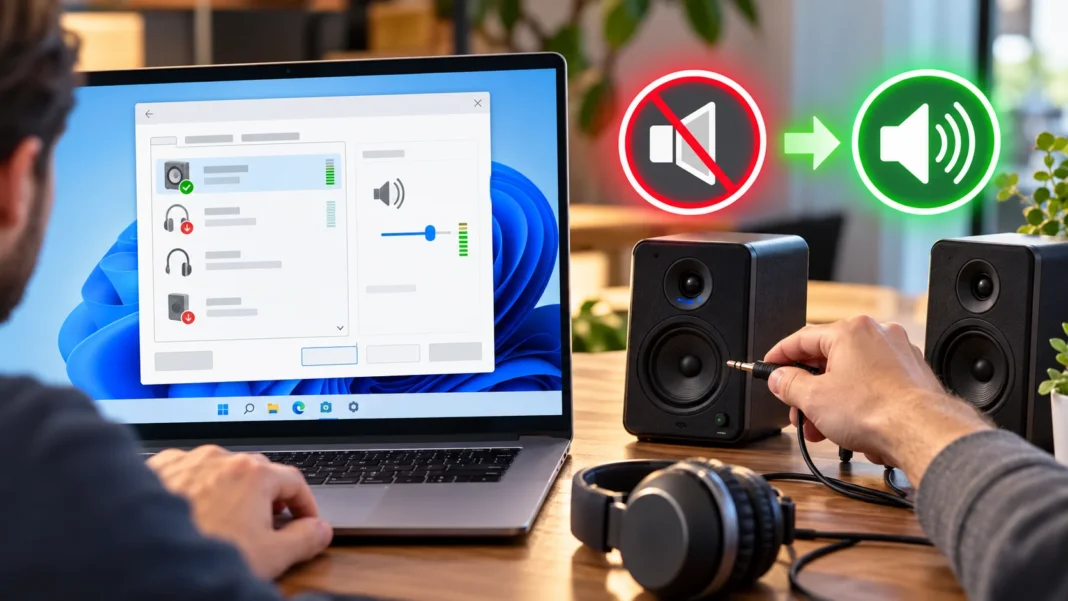
Check the Volume and Basic Sound Settings
When a Windows PC suddenly has no sound, start with the simplest possibilities before changing advanced settings. Check the speaker icon on the taskbar and make sure the system volume is not muted or set extremely low. Also confirm that the volume inside the app, browser tab, game, or media player you are using has not been muted separately.
Windows can control volume levels for individual applications, so one program may be silent while everything else works normally. Open the volume mixer and review the sound level for each active application. Increase any unusually low levels and make sure the affected program is not muted. Testing sound in several applications can help determine whether the problem affects Windows or only one program.
If you are using physical speakers or headphones, check their own volume controls as well. Some devices have a separate knob, button, or touch control that operates independently from Windows. Make sure the speakers are powered on and properly connected. These basic checks may seem simple, but they solve many common no-sound problems without additional troubleshooting.
Make Sure Windows Is Using the Correct Audio Output
Windows may send sound to the wrong device when multiple audio outputs are connected. For example, audio might be directed to a monitor, Bluetooth headset, docking station, HDMI connection, or inactive speaker instead of the device you expect. Click the speaker icon on the taskbar and review the currently selected audio output before changing more complicated settings.
Select the speakers, headphones, or audio device you actually want to use and test the sound again. If you recently connected a monitor through HDMI or DisplayPort, Windows may automatically switch audio to the monitor. This is especially common when monitors include built-in speakers or advertise themselves as audio-capable devices even when you prefer external speakers.
You can also open Windows Sound settings and review the available output devices. Choose the correct one and set it as your preferred output when appropriate. If several similar device names appear, test them one at a time. Identifying the correct audio destination is one of the fastest ways to fix a Windows PC with no sound.
Restart Your Computer and Audio Devices
A simple restart can resolve temporary audio problems caused by stuck services, driver errors, or applications that failed to release an audio device correctly. Save your work, restart Windows, and test sound before reopening numerous programs. Restarting refreshes many system components and can restore audio without requiring manual changes to drivers or advanced configuration settings.
Restart external sound equipment as well. Turn off powered speakers, disconnect USB headsets, or switch Bluetooth headphones off for several seconds before reconnecting them. If you use a docking station or external audio interface, restart that device too. Temporary communication problems between Windows and external hardware can disappear after both sides are properly reset.
Avoid relying only on shutting the computer down if you are troubleshooting a persistent problem. A normal restart can provide a more complete refresh of Windows services and drivers. If the audio begins working after restarting but fails again later, another program, driver, or background process may be causing the issue and deserves further investigation.
Check Speaker, Headphone, and Cable Connections
Loose or incorrect cable connections can easily cause a no-sound problem on a desktop or laptop. Make sure wired headphones and speakers are inserted fully into the correct audio jack. Desktop computers may have several similar ports for microphones, line input, and speakers, so confirm that the cable is connected to the appropriate output rather than an input port.
If you are using USB speakers, a USB headset, or an external audio adapter, unplug the device and reconnect it to another USB port. Avoid using a faulty hub while troubleshooting. Windows should usually recognize the device again after reconnection. If possible, test the same headphones or speakers with another device to confirm that the hardware itself works.
Inspect cables for visible damage, loose connectors, or bent plugs. Powered speakers should also be connected to electricity and switched on. If another set of headphones works on the same Windows PC, the original audio device may be responsible. Hardware testing helps separate Windows configuration problems from failures involving speakers, headphones, cables, or adapters.
Run the Windows Audio Troubleshooter
Windows includes built-in troubleshooting tools that can identify common sound problems automatically. Open Settings, navigate to the sound or troubleshooting options, and look for the audio or sound troubleshooter. Follow the prompts while the tool checks output devices, audio services, drivers, and related settings. It may suggest changes or apply certain fixes automatically.
The troubleshooter is particularly useful when you are unsure where the problem started. It may detect that the wrong output device is selected, an audio enhancement is causing trouble, or a service is not functioning correctly. Although it cannot fix every hardware or driver problem, it provides a useful early step before more technical troubleshooting.
After the troubleshooter finishes, test several types of audio. Play a local video, a browser video, and a Windows system sound if available. If audio works in only one place, the issue may be application-specific. If nothing produces sound, continue checking drivers, services, and device settings rather than repeatedly running the same troubleshooting tool.
Restart Windows Audio Services
Windows relies on background services to manage audio playback. If one of these services stops or becomes unresponsive, the computer may suddenly lose sound even when speakers and drivers appear normal. Restarting the relevant audio services can restore sound without requiring a full driver reinstall. This is especially useful when sound disappeared after a temporary software problem.
Open the Services management tool and locate Windows Audio and related audio endpoint services. Restart them if the option is available, then test sound again. Be careful not to disable unrelated system services. The goal is simply to refresh the components responsible for delivering audio between Windows applications and your selected playback device.
If audio services repeatedly stop after being restarted, a deeper problem may exist. Corrupted system files, unstable drivers, or third-party audio software can interfere with normal service operation. In that case, continue troubleshooting instead of manually restarting services every time. Repeated service failure is a symptom that the underlying cause still needs to be identified.
Update the Audio Driver
Audio drivers allow Windows to communicate with built-in sound hardware, USB audio devices, and other playback components. An outdated or damaged driver can cause missing sound, distorted audio, or devices disappearing from Windows entirely. Updating the driver is therefore a useful step when basic volume and output checks do not solve the problem.
Open Device Manager and look for sound, video, and game controllers or other audio-related categories. Select the relevant audio device and check for available driver updates. You can also use Windows Update or your computer manufacturer’s support software to obtain drivers designed for your specific hardware. Manufacturer-provided drivers can be especially useful on laptops.
Avoid downloading random driver packages from unfamiliar websites. Incorrect drivers can create additional problems or introduce unwanted software. If you know the model of your PC or motherboard, use trusted manufacturer tools or Windows-supported updates. After installing an audio driver update, restart the computer and test sound again before making additional changes.
Reinstall or Roll Back the Audio Driver
If updating the driver does not help, reinstalling it may fix corrupted driver files. In Device Manager, uninstall the affected audio device and then restart Windows. The operating system can often detect the hardware and reinstall an appropriate driver automatically. This refresh may restore sound when the existing driver installation has become damaged or misconfigured.
A rollback may be more appropriate if the audio stopped working immediately after a driver update. Device Manager sometimes provides an option to return to the previous driver version. This can be helpful when a newer release introduces compatibility problems. Once the older driver is restored, restart Windows and check whether your speakers or headphones begin working normally again.
Do not repeatedly install different drivers without tracking what changed. Make one change at a time and test the result. This approach makes it easier to identify the actual cause of the problem. If several driver versions fail, the issue may involve Windows settings, hardware, or another software component rather than the audio driver alone.
Disable Audio Enhancements and Spatial Sound
Windows and audio manufacturers may include sound enhancements designed to improve bass, surround effects, loudness, or clarity. These features can sometimes conflict with certain drivers or applications and cause audio problems. If sound disappeared after changing audio settings, disabling enhancements provides a useful test. You can always turn them back on later if they are not responsible.
Open the properties for your selected audio output and review enhancement or effects options. Disable available enhancements temporarily, then test normal audio playback. Spatial sound features can also be turned off during troubleshooting. If sound returns, re-enable features individually until you identify which setting causes the problem instead of disabling everything permanently.
Third-party audio utilities can introduce similar conflicts. Gaming headsets, motherboard software, virtual surround tools, and audio equalizers sometimes add their own processing layers. Close or temporarily disable these applications if they appeared around the time the issue began. Simplifying the audio path can help determine whether extra processing software is interfering with normal Windows sound.
Check App and Browser Audio Settings
If only one application has no sound, the problem is probably not the entire Windows audio system. Check the application’s own volume control and make sure it is using the correct output device. Communication apps, video editors, games, and music software often allow users to select a playback device independently from the Windows default.
Browsers can also mute individual tabs or websites. Look for a muted speaker icon on the tab and confirm that the website itself has permission to play sound. If one browser remains silent while other programs work, test another browser. Clearing temporary settings or restarting the affected browser may also resolve an application-specific audio problem.
The Windows volume mixer can reveal whether a particular application has been muted separately. Make sure the correct output is assigned to that app if Windows provides per-application device settings. When system sounds work but one program remains silent, focus your troubleshooting on that program rather than reinstalling drivers or changing unrelated system settings.
Fix Bluetooth Audio Problems
Bluetooth headphones and speakers can stop producing sound if the wireless connection becomes unstable or Windows connects using the wrong profile. Start by turning Bluetooth off and on again, then reconnect the audio device. Make sure the headphones or speaker are not simultaneously connected to another phone, tablet, or computer that could be taking control of playback.
Remove the Bluetooth device from Windows and pair it again if reconnection does not solve the problem. Pairing from scratch can refresh stored connection information and restore the correct audio profile. After reconnecting, check the Windows output selector and confirm that the Bluetooth device is actively selected rather than another speaker or monitor.
Battery level can also affect Bluetooth performance. Recharge the device if the battery is low and move closer to the computer to reduce interference while testing. If wired headphones work but Bluetooth audio does not, the issue is likely limited to the wireless connection or Bluetooth driver. Updating Bluetooth drivers may help when pairing problems repeatedly return.
Check HDMI and Monitor Audio
Connecting a PC to a monitor or television through HDMI or DisplayPort can automatically redirect Windows sound. If your computer suddenly becomes silent after connecting an external display, check the selected output device. Windows may be sending audio through the HDMI connection even when the monitor has no speakers or its volume is turned down.
Select your normal speakers or headphones from the Windows output menu if you do not want audio through the display. If you do want to use the monitor or television speakers, verify that the display volume is enabled. Some monitors require separate menu settings before built-in speakers or audio outputs become active.
Graphics drivers can also affect HDMI audio because sound is often transmitted through the graphics hardware. If HDMI sound disappears after a graphics update, restarting or updating the graphics driver may help. Test another HDMI cable or port when possible. This helps determine whether the problem comes from Windows, the display, or the physical connection.
Check for Windows Updates and System Problems
Windows updates can fix known compatibility problems affecting audio devices, drivers, and system components. Open Windows Update and install important available updates, then restart the computer. If audio problems began after the operating system had not been updated for a long period, bringing Windows current may resolve driver or service issues affecting sound playback.
However, sound can occasionally stop after a recent update. If the timing clearly matches an update installation, check whether an updated audio driver is also available. Sometimes hardware manufacturers release driver fixes after major Windows changes. Avoid immediately removing system updates unless you have good reason to believe a specific update caused the issue.
Corrupted Windows files can also interfere with audio services. Built-in system repair tools such as System File Checker may help when several Windows features behave strangely at the same time. If sound failure appears alongside crashes, missing settings, or other system problems, checking Windows integrity can be more useful than focusing only on the speakers.
Test for Hardware Failure
If software troubleshooting does not restore sound, the problem may involve physical hardware. Test different headphones or speakers with the same PC and try your original audio device on another computer or phone. These comparisons can quickly reveal whether the problem follows the speakers, headphones, or Windows computer rather than guessing which component has failed.
On desktop computers, damaged front audio ports can sometimes fail while rear motherboard ports continue working. Test another available output connection if possible. Laptop headphone jacks can also become worn or damaged. USB audio adapters provide another way to test whether the built-in audio hardware is responsible for the no-sound problem.
If neither built-in speakers nor several external audio devices work after Windows has been reset or drivers have been reinstalled, hardware repair may be necessary. A failing sound chip, motherboard problem, or damaged internal speaker connection may require professional diagnosis. Back up important data before major repair work, particularly if other hardware issues are also appearing.
Conclusion
Fixing no sound on a Windows PC usually begins with simple checks. Confirm the volume is not muted, choose the correct output device, restart Windows, and inspect speaker or headphone connections. Many audio problems come from incorrect output selection or temporary software issues, so these basic steps should be completed before making major system changes.
If the problem continues, move through driver updates, audio services, enhancements, Bluetooth settings, application controls, and Windows updates systematically. Test after each change instead of adjusting several settings at once. This makes it easier to identify what actually fixed the sound and prevents unnecessary modifications from introducing additional problems.
Persistent audio failure after software troubleshooting may point to damaged speakers, ports, cables, or internal sound hardware. Testing alternative devices can help isolate the fault. Whether the cause is a muted application or hardware failure, working through the problem in a logical order provides the fastest and safest path toward restoring sound on your Windows PC.
FAQs
Why does my Windows PC suddenly have no sound?
Sound can disappear because of muted volume, the wrong output device, driver problems, stopped audio services, Bluetooth issues, Windows updates, or damaged hardware. Start with volume and device selection before trying advanced fixes.
How do I reset the sound on Windows?
Restart the computer, select the correct audio output, and restart Windows Audio services if necessary. Reinstalling the audio driver can also reset the connection between Windows and your sound hardware.
Why are my speakers connected but not producing sound?
Windows may be sending audio to another output such as HDMI, Bluetooth headphones, or a monitor. The speakers may also be muted, improperly connected, powered off, or affected by a driver issue.
Can an audio driver cause no sound?
Yes. A corrupted, outdated, or incompatible audio driver can prevent Windows from communicating properly with speakers or headphones. Updating, reinstalling, or rolling back the driver can often restore sound.
What should I do if nothing fixes my Windows audio?
Test different headphones, speakers, ports, and cables to rule out hardware problems. If sound still fails after driver and Windows troubleshooting, professional diagnosis may be needed to check the internal audio hardware.