


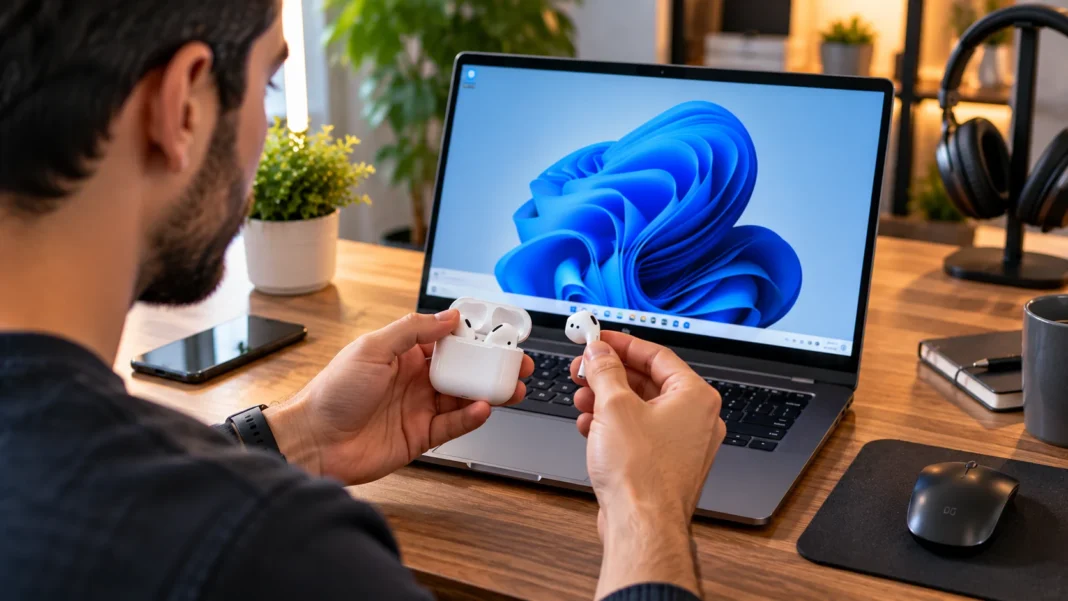
AirPods are designed to work smoothly with Apple devices, but they can also connect to a Windows PC through Bluetooth. Once paired, you can use them for music, videos, online meetings, gaming, and other everyday audio tasks. The setup process is straightforward as long as your computer has Bluetooth and the AirPods have enough battery power.
Windows treats AirPods like most other Bluetooth headphones, so you do not need special Apple software for basic audio playback. The exact steps may look slightly different depending on your Windows version and AirPods model, but the overall process remains similar. You put the AirPods into pairing mode, find them through Bluetooth settings, and complete the connection.
This guide explains how to connect AirPods to a Windows PC, set them as your audio device, use the microphone, reconnect them later, and solve common Bluetooth problems. It also covers AirPods Pro and AirPods Max, helping you create a more reliable wireless audio setup on Windows.
Check Whether Your Windows PC Has Bluetooth
Before connecting AirPods, confirm that your Windows computer supports Bluetooth. Most modern laptops include Bluetooth automatically, while some desktop computers require a separate Bluetooth adapter. Open Settings, select Bluetooth & devices, and look for the Bluetooth switch near the top of the page.
You can also check through Device Manager if the Bluetooth option does not appear in Settings. Right-click the Start button, open Device Manager, and look for a Bluetooth category. If Bluetooth hardware is installed correctly, you should normally see an adapter and several related devices listed beneath that section.
A desktop without built-in Bluetooth can usually use a USB Bluetooth adapter. Once a compatible adapter and its required drivers are installed, Windows can connect to wireless headphones in the same way as a laptop. Make sure Bluetooth is turned on before beginning the AirPods pairing process so the computer can discover nearby devices.
Prepare Your AirPods Before Pairing
Make sure your AirPods and charging case have enough battery before attempting to pair them with Windows. Place both earbuds inside the charging case for a short time if you are unsure about their charge level. A low battery can sometimes cause inconsistent discovery, connection failures, or unexpected disconnections during setup.
If your AirPods are currently connected to an iPhone, iPad, or another nearby device, they may automatically reconnect to that device instead of your PC. You can temporarily disable Bluetooth on the other device or disconnect the AirPods from it. This makes it easier for Windows to establish a new Bluetooth connection without competing with another active device.
Keep the AirPods and Windows computer close together during the initial setup. Bluetooth works over short distances, and physical obstacles or wireless interference can occasionally affect discovery. Pairing is usually easiest when the AirPods case is placed directly beside the laptop or desktop while Windows searches for nearby Bluetooth devices.
Put AirPods Into Bluetooth Pairing Mode
For many AirPods models with a charging case, open the lid while keeping the earbuds inside. Use the pairing control on the case and hold it until the status light begins flashing white. A flashing white light generally indicates that the AirPods are ready to be discovered by a new Bluetooth device.
Newer AirPods cases may use a different pairing interaction depending on the generation, so the exact physical control can vary. The important goal is to place the AirPods into discovery mode until the case indicates that Bluetooth pairing is active. Once pairing mode begins, move quickly to the Windows Bluetooth menu.
AirPods Max use a different process because they do not have a standard earbud charging case. Put AirPods Max into Bluetooth pairing mode using the noise control button until the status light flashes white. Windows should then be able to discover them in the same Bluetooth device list used for other wireless headphones.
Connect AirPods Through Windows Bluetooth Settings
Open Settings on your Windows PC and select Bluetooth & devices. Make sure Bluetooth is switched on, then choose Add device and select Bluetooth from the available options. Windows will begin searching for wireless devices that are currently in pairing mode and within range of the computer.
Wait for your AirPods to appear in the list. They may display as AirPods, AirPods Pro, AirPods Max, or a customized name previously assigned through another device. Select the AirPods name and allow Windows a few seconds to establish the Bluetooth connection.
When pairing succeeds, Windows should confirm that the device is connected and ready to use. Close the pairing window and play a video or song to test the connection. In many cases, Windows automatically switches audio output to the newly connected AirPods, although you may occasionally need to choose them manually.
Set AirPods as the Windows Audio Output
If your AirPods connect but sound continues playing through the laptop speakers, check the Windows sound output setting. Click the speaker icon on the taskbar and open the audio output selector. Choose your AirPods from the available playback devices to route Windows sound through the earbuds.
You can also open Settings > System > Sound for more detailed controls. Under the output section, select your AirPods and confirm that the volume level is high enough. This page may also provide additional options related to audio format, spatial sound, and device-specific output behavior depending on your Windows configuration.
Some applications allow you to choose an audio device independently of the main Windows setting. Video conferencing software, games, music applications, and browsers may continue using a previously selected output device. If one program has no sound while other applications work normally, review that application’s internal audio settings.
Use the AirPods Microphone on Windows
AirPods include microphones that Windows can use for voice calls, online meetings, and other applications. Open Settings > System > Sound and look under the input device section. Select the AirPods microphone if Windows has not automatically chosen it as the active recording device.
Applications such as Microsoft Teams, Zoom, Discord, or communication software may also have independent microphone settings. Open the application’s audio preferences and select your AirPods as the input device. Performing a short microphone test before an important meeting can help ensure that both the microphone and playback device are working correctly.
Bluetooth audio quality can sometimes change when both the microphone and headphones are used simultaneously. This happens because traditional Bluetooth headset modes may allocate bandwidth differently during voice communication. If music sounds noticeably different during a call, it may return to higher-quality playback after the application stops actively using the microphone.
Reconnect AirPods After the First Pairing
You normally do not need to repeat the complete pairing process every time you use AirPods with the same computer. Once Windows has saved the Bluetooth connection, open the AirPods case or put the headphones into use while Bluetooth is enabled. They may reconnect automatically if no other previously paired device takes priority.
If they do not reconnect automatically, open Settings > Bluetooth & devices and locate the AirPods. Depending on your Windows configuration, you may be able to connect them directly from the device list. You can also open the sound output selector and choose the AirPods when they are available.
Automatic switching is generally less seamless on Windows than within Apple’s own device ecosystem. AirPods may connect to a nearby iPhone or another Apple device before the Windows PC. Disconnecting them from that device or temporarily disabling its Bluetooth can make reconnecting to Windows easier when automatic connection becomes inconsistent.
Connect AirPods Pro to a Windows PC
AirPods Pro connect to Windows using the same basic Bluetooth process as standard AirPods. Put them into pairing mode, open Windows Bluetooth settings, select Add device, and choose them from the nearby device list. Once paired, they can function as regular Bluetooth headphones and a microphone.
Basic audio playback and calls work without installing special Apple applications. However, some ecosystem-specific features may not behave exactly as they do on an iPhone, iPad, or Mac. The experience on Windows focuses primarily on Bluetooth audio rather than the complete set of Apple device integration features.
You can still use physical controls on AirPods Pro for supported functions such as playback or noise-control modes, depending on the model and current configuration. If a feature was previously customized on an Apple device, those settings may influence how the earbuds behave when connected to Windows.
Connect AirPods Max to Windows
AirPods Max can also work with Windows PCs through standard Bluetooth. Turn on Bluetooth in Windows, place AirPods Max into pairing mode, and wait for them to appear in the Add a device menu. Choose AirPods Max from the list and wait until Windows reports a successful connection.
After pairing, select AirPods Max as your sound output if Windows does not switch automatically. You can use them for music, streaming video, games, and online conversations. Their built-in microphones may also appear as an input option in Windows and compatible communication applications.
As with other AirPods, some Apple-specific features may be limited when using AirPods Max on Windows. Basic listening remains straightforward because Bluetooth handles the core connection. Users who frequently switch between Windows and Apple devices may occasionally need to manually select which device should control the headphones.
Fix AirPods That Do Not Appear in Windows
If Windows cannot find your AirPods, first confirm that Bluetooth is turned on and the AirPods are actually in pairing mode. Look for the appropriate flashing status light and keep the headphones close to the PC. Exit the Add a device window and start another search if the first attempt produces no result.
Next, check whether the AirPods are already connected to another nearby device. An iPhone, tablet, Mac, or another computer may automatically claim the connection. Disconnecting the AirPods from that device can allow Windows to discover and connect to them more reliably.
Restarting Bluetooth or rebooting the computer can also clear temporary connection problems. If other Bluetooth devices are not working either, check Device Manager and Windows Update for Bluetooth driver issues. Persistent problems may be related to the computer’s wireless adapter rather than the AirPods themselves.
Fix AirPods That Connect but Have No Sound
A successful Bluetooth connection does not always mean Windows has selected AirPods for playback. Open the taskbar sound selector and verify that the AirPods are the active output device. Increase both Windows volume and application volume, then test sound with more than one program.
If the AirPods appear correctly but remain silent, disconnect and reconnect them through Bluetooth settings. Closing audio applications before reconnecting can also help because some programs do not immediately recognize a device change. Restarting the application after selecting AirPods often forces it to use the current Windows audio output.
You can also remove the AirPods from Windows and pair them again if the saved connection appears damaged. Go to Bluetooth & devices, find the AirPods, and remove the device. Put them back into pairing mode and complete a fresh connection as if you were using them with the PC for the first time.
Improve AirPods Bluetooth Connection Quality
Keep the AirPods reasonably close to the computer when possible, especially if your PC uses a small USB Bluetooth adapter. Walls, metal objects, and other wireless devices can weaken Bluetooth signals. Moving the adapter to a less obstructed USB port or using an extension cable may improve reception on some desktop setups.
Bluetooth and Wi-Fi operate in nearby wireless frequency ranges, so crowded environments can sometimes introduce interference. If audio repeatedly cuts out, test the AirPods closer to the PC and temporarily disconnect unnecessary Bluetooth devices. This can help determine whether signal congestion is contributing to unstable playback.
Keeping Windows and Bluetooth drivers updated can also improve device compatibility. Laptop manufacturers and wireless adapter vendors occasionally release driver improvements that address connection reliability. If AirPods work well with other devices but repeatedly fail only on one PC, the computer’s Bluetooth hardware or driver configuration deserves closer investigation.
Remove or Reset the AirPods Connection
You may want to remove AirPods from Windows if pairing problems continue or if you no longer use them with that computer. Open Settings > Bluetooth & devices, locate the AirPods, open the available device options, and choose the option to remove them. Windows will forget the saved Bluetooth pairing.
After removal, place the AirPods back into pairing mode and add them again if you want a completely fresh connection. Re-pairing can solve situations where Windows recognizes the AirPods but repeatedly fails to connect correctly. It also helps after significant Bluetooth driver changes or system troubleshooting.
If the issue continues across multiple devices, the AirPods themselves may require additional troubleshooting or a reset appropriate to that model. Before doing so, confirm that charging, Bluetooth settings, and device selection are not the actual problem. Reset procedures can vary between AirPods generations, so the correct method depends on the specific model.
Conclusion
Connecting AirPods to a Windows PC is possible because AirPods support standard Bluetooth audio. Start by confirming that your computer has Bluetooth, place the AirPods into pairing mode, and add them through Windows Bluetooth settings. Once paired successfully, Windows can use them for music, videos, calls, and other audio.
If sound or microphone behavior is incorrect, review Windows output and input settings along with the audio options inside individual applications. AirPods may not provide exactly the same integration on Windows as they do within Apple’s ecosystem, but their core Bluetooth headphone and microphone functions remain useful.
Most connection problems can be solved by checking pairing mode, disconnecting competing devices, selecting the correct sound output, updating Bluetooth drivers, or removing and re-pairing the AirPods. After the first successful setup, reconnecting usually becomes much faster and requires only a few clicks when automatic connection does not occur.
FAQs
Can AirPods connect to a Windows PC?
Yes. AirPods use Bluetooth and can connect to Windows PCs that have compatible Bluetooth hardware. You can use them for audio playback and, in many applications, microphone input.
Why are my AirPods not showing up on Windows?
Make sure the AirPods are in Bluetooth pairing mode and not already connected to another nearby device. Also confirm that Bluetooth is enabled and working correctly on the Windows PC.
How do I make AirPods my default audio device?
Open the Windows sound output selector or go to Settings > System > Sound, then choose your AirPods as the output device. Applications with separate audio settings may also need adjustment.
Can I use the AirPods microphone on a PC?
Yes. Select the AirPods microphone under Windows sound input settings and within your calling application. Bluetooth audio quality may change temporarily while the microphone is actively being used.
Do AirPods automatically reconnect to Windows?
They often reconnect after the first pairing, but nearby Apple devices may sometimes connect first. If that happens, manually select the AirPods in Windows or disconnect them from the competing device.