


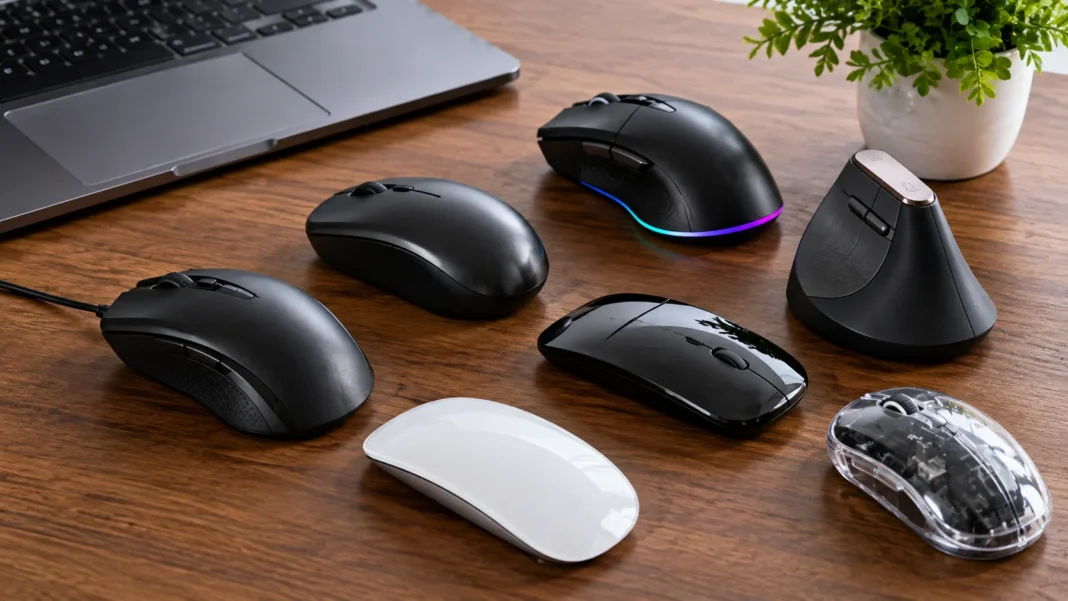
Mouse Definition: Types, Functions & Uses
A mouse is a computer input device used to control a pointer, select items, open files, navigate interfaces, and interact with digital content on a screen. It is one of the most familiar pieces of computer hardware because it gives users a simple physical way to communicate with graphical user interfaces. Moving the mouse across a desk or another surface typically moves the pointer in the same direction on the display. Buttons and a scroll wheel then allow users to click, drag, scroll, select, and perform additional commands. Although touchscreen devices have become common, the computer mouse remains important in homes, offices, schools, creative studios, and professional workstations.
The modern computer mouse comes in many designs, ranging from basic wired models to advanced wireless, gaming, ergonomic, vertical, and trackball devices. Each type serves the same fundamental purpose but may be optimized for different users or tasks. A graphic designer may prioritize precise tracking, while a competitive gamer may value fast response times and programmable buttons. Office employees often prefer comfort and reliable scrolling, especially when working for several hours each day. Laptop users may choose compact Bluetooth mice that fit easily into a travel bag. Understanding mouse types makes it easier to select a device that matches specific computer activities, hand preferences, budgets, and working environments.
Computer mice have also become much more technically advanced than earlier mechanical designs. Traditional ball mice used a physical rolling ball to detect movement, while most modern devices use optical or laser sensors. These sensors measure movement across a surface and translate it into cursor movement with impressive accuracy. Many models offer adjustable sensitivity, commonly described using DPI or CPI settings, allowing users to control how quickly the pointer responds. Wireless technology has also improved significantly, making cordless mice suitable for everyday computing and demanding professional tasks. Rechargeable batteries, customizable buttons, multi-device switching, and software-based controls have further expanded what a mouse can do.
Despite these improvements, the basic mouse functions remain easy to understand. Users move the pointer, click objects, double-click files, right-click for additional options, drag items, and scroll through pages or documents. These actions are deeply integrated into desktop operating systems and many software applications. In programs such as spreadsheets, design tools, web browsers, video editors, and games, the mouse often performs functions that would be inconvenient using only a keyboard. For users who work with visual interfaces, precise pointer control can significantly improve speed and productivity. This balance of simplicity and versatility explains why the mouse has remained relevant for decades.
This guide explains the mouse definition, how a computer mouse works, major mouse types, essential functions, common uses, important components, and factors to consider when choosing one. It also explores differences between wired and wireless mice, optical and laser sensors, gaming and office models, and traditional and ergonomic designs. Related concepts such as mouse sensitivity, polling rate, programmable buttons, tracking accuracy, and connectivity are explained in practical language. Whether you are learning basic computer terminology or trying to choose better computer accessories, understanding the mouse provides a useful foundation. The device may look simple, but it plays an important role in how people interact with modern computers.
What Is a Mouse in a Computer?
A mouse in computing is a pointing input device that allows a person to control an on-screen cursor through physical movement. When the user moves the device across a compatible surface, internal sensors detect the direction and distance of that movement. The computer interprets this information and moves the pointer accordingly on the display. Buttons allow the user to communicate commands such as selecting an icon, opening a program, choosing menu options, or placing the text cursor at a particular location. A scroll wheel usually provides vertical navigation through documents and websites. Together, these features create a direct and intuitive method of interacting with graphical computer environments.
The mouse is classified as an input device because it sends information and commands to the computer rather than primarily presenting information back to the user. Other common input devices include keyboards, microphones, scanners, touchpads, cameras, and game controllers. What distinguishes the mouse is its specialization in pointer movement and object manipulation within a visual interface. Users can position the pointer precisely over buttons, icons, links, text, images, cells, and other elements. This capability becomes particularly valuable when applications contain large numbers of visual controls. The mouse therefore serves as a bridge between physical hand movement and digital actions performed within software.
Most computer mice contain at least two main buttons and a central scroll wheel. The left button usually handles standard actions such as selecting and opening items, while the right button commonly displays context-sensitive menus containing additional options. The scroll wheel lets users move through long pages without dragging a scroll bar manually. Many wheels can also be pressed like an additional button, creating another available command. Advanced models may include side buttons, sensitivity controls, horizontal scrolling, gesture surfaces, or programmable inputs. Manufacturers design these features around different types of computing, from simple web browsing to sophisticated professional software and competitive gaming.
A computer mouse does not control the display directly because its movements are interpreted through hardware, drivers, operating system settings, and software. The sensor measures motion, the device communicates that data to the computer, and the operating system converts it into pointer behavior. Settings such as pointer speed, acceleration, scrolling speed, and button configuration can change how the mouse feels. Applications can also assign special meanings to certain mouse actions. For example, holding a button while moving the mouse may rotate a three-dimensional model inside design software. This flexibility allows one relatively simple input device to perform many specialized tasks across different applications.
The word mouse usually refers to the physical pointing device, while the small symbol moving on the screen is more accurately called the mouse pointer or cursor depending on context. People often use these terms interchangeably in everyday conversation, but they describe different components of the interaction. The physical mouse detects the user’s actions, and the pointer represents those actions visually on the screen. Understanding this distinction can be useful when learning computer basics or troubleshooting problems. If the physical device works but the pointer behaves incorrectly, the issue might involve software settings rather than the hardware itself. This basic distinction makes computer mouse terminology easier to understand.
How Does a Computer Mouse Work?
A modern computer mouse works by detecting movement across a surface and converting that movement into digital information the computer can understand. Most current mice use optical technology, which typically includes a light source, a sensor, and internal processing electronics. The sensor rapidly examines small changes in the surface beneath the device as the user moves it. Those changes are compared from one measurement to the next to determine direction and distance. The mouse then sends movement data to the computer through a cable, wireless receiver, or Bluetooth connection. The operating system translates the data into corresponding movement of the pointer across the display.
Optical sensors replaced the mechanical systems used in older ball mice. A mechanical mouse contained a rubber or metal-coated ball that rolled when the user moved the device. Internal rollers detected the movement of the ball along horizontal and vertical axes, allowing the computer to calculate pointer direction. Dust and dirt could collect around the ball and rollers, causing inaccurate or jerky movement. Users often had to remove the ball and clean the internal parts manually. Optical mice eliminated much of this maintenance because they have no movement-detection ball. The transition helped make computer mice more reliable, accurate, lightweight, and convenient for everyday users.
Laser mice operate on similar principles but use a laser-based illumination system rather than the light source found in many standard optical devices. Depending on the sensor design, laser technology can sometimes track on a wider variety of surfaces. However, modern optical sensors have improved so much that the practical difference is less important for many everyday users. Gamers frequently prefer high-quality optical sensors because predictable tracking can matter more than the ability to work on unusual surfaces. Office users may never notice a meaningful distinction between well-designed optical and laser models. Sensor implementation, surface quality, sensitivity settings, and software can all affect real-world performance.
The mouse buttons work through switches located beneath the physical button surfaces. Pressing a button activates the switch, which sends a signal representing a click to the computer. The software currently in use determines what happens after that click. A single left-click might select an item, while a double-click could open it. Holding the button while moving the device may allow the user to drag a file, resize an object, or highlight text. Right-clicking typically opens a contextual menu with commands related to the selected item. Additional buttons can perform browser navigation, gaming commands, shortcuts, or other actions depending on configuration.
Wireless mice perform the same basic functions but transmit information without a permanent cable between the device and computer. Some use a small USB receiver operating on a dedicated wireless connection, while others communicate through Bluetooth. The mouse requires electrical power, usually supplied by replaceable batteries or an internal rechargeable battery. Modern wireless designs can offer responsive performance with little noticeable delay during ordinary computing. High-performance models are also available for gaming and professional use where timing matters. The choice between wired and wireless operation therefore depends less on basic functionality and more on preferences involving convenience, battery management, desk organization, compatibility, and performance expectations.
Main Types of Computer Mouse
A wired mouse connects directly to a computer using a physical cable, most commonly through a USB port. This traditional design remains popular because it is simple, reliable, and does not require battery charging. The continuous physical connection can provide stable communication without concerns about wireless interference or pairing. Wired models are available at nearly every price level, from basic office mice to advanced gaming devices. The cable can sometimes create clutter or resistance on a crowded desk, particularly when users make large movements. Even so, wired mice remain a practical choice for desktops, schools, shared workplaces, gaming setups, and users who prefer straightforward plug-and-play hardware.
A wireless mouse removes the permanent cable and connects through a USB receiver or Bluetooth. This design creates a cleaner workspace and gives users greater freedom to position the device. Wireless mice are especially useful with laptops because they can be packed easily and used without adding another cable to a portable setup. Bluetooth models can also save a USB port, which is valuable on thin laptops with limited connectivity. The main consideration is power because wireless devices require batteries or regular charging. Modern energy-efficient models can operate for long periods, making battery management relatively minor for many users. Wireless technology has therefore become a mainstream choice rather than a premium novelty.
An ergonomic mouse is designed to reduce uncomfortable hand or wrist positions during prolonged computer use. Traditional mice generally require the palm to face downward, which may feel uncomfortable for some users over long periods. Ergonomic shapes attempt to provide different wrist angles, palm support, thumb positioning, or grip styles. Vertical mice are a well-known example because they rotate the hand into a more handshake-like position. Comfort remains highly individual, so one ergonomic design may feel excellent to one person and awkward to another. Users who experience persistent pain should not assume changing the mouse alone will solve the underlying issue and may benefit from professional ergonomic or medical guidance.
A trackball mouse changes the way pointer movement is controlled. Instead of sliding the entire device across a desk, the user rotates a ball with the thumb, fingers, or palm. The mouse body remains mostly stationary, making trackballs useful where desk space is limited. Some users appreciate the reduced arm movement, while others need time to develop accurate control. Trackballs can work particularly well for certain office tasks, accessibility needs, specialized workstations, or users who simply prefer the operating style. Like traditional mice, they may include scroll wheels and programmable buttons. Their unusual design demonstrates that pointer control does not require physically moving the entire device.
Gaming mice are built for users who need fast response, precise tracking, customization, and additional controls. They often include high-quality sensors, adjustable sensitivity, programmable buttons, onboard profiles, and settings for polling rate. Some gaming models are lightweight for fast movements, while others emphasize larger ergonomic shells or multiple side buttons. Competitive players may choose different designs depending on game genre because a first-person shooter and a complex online role-playing game can demand different controls. Gaming mice can also be useful outside gaming because customizable shortcuts may improve productivity in creative or technical software. However, users should select features they will actually use rather than paying for specifications that provide no practical benefit.
Important Functions of a Mouse
Pointer movement is the most fundamental function of a computer mouse. As the user moves the device, the pointer travels across the screen so that specific digital elements can be targeted. Accurate pointer control is essential when selecting small icons, editing images, choosing spreadsheet cells, or positioning objects in design applications. Sensitivity settings determine how much screen movement results from a given physical movement of the mouse. Higher sensitivity generally moves the pointer farther with less hand movement, while lower sensitivity provides more physical movement for finer control. The ideal setting depends on screen size, resolution, software, desk space, personal preference, and the type of task being performed.
Clicking allows users to interact with the object currently positioned beneath the pointer. A single click often selects an item or activates a button, while a double-click commonly opens files, folders, or applications. The exact behavior depends on operating system settings and software design. Right-clicking usually displays a contextual menu containing commands related to the selected object or area. This can provide fast access to actions such as copying, renaming, formatting, inspecting, or changing properties. Because clicking is used constantly during desktop computing, reliable button switches are an important part of mouse quality. Poor or worn switches can eventually produce missed clicks or unintended repeated inputs.
Dragging is another important mouse function that combines button presses with pointer movement. Users typically press and hold a mouse button, move the device, and release the button when the object reaches the desired position. This technique can move files between folders, rearrange icons, select blocks of text, resize windows, or reposition objects in a presentation. Graphic design applications rely heavily on dragging for moving shapes, adjusting handles, and manipulating visual elements. The action feels intuitive because it resembles physically picking up and repositioning an object. Drag-and-drop interfaces have therefore become a common feature of operating systems, websites, file managers, and creative applications.
Scrolling helps users navigate content that extends beyond the visible portion of the screen. Rotating the mouse wheel usually moves a webpage or document vertically, reducing the need to drag small on-screen scroll bars. Some mice support horizontal scrolling through wheel tilting, secondary wheels, touch gestures, or software controls. Smooth or free-spinning wheels can help users move quickly through long documents, while stepped scrolling can provide greater control. The wheel may also function as a middle mouse button when pressed. In certain applications, this button can open links in new tabs, control camera movement, activate panning, or perform other specialized functions.
Programmable mouse functions extend beyond ordinary pointer control and clicks. Advanced mice may include side buttons that can be assigned to browser navigation, copy and paste, application shortcuts, media controls, macros, or gaming commands. Productivity users can configure frequently repeated tasks to reduce reliance on keyboard shortcuts or menus. Designers and video editors may map application-specific actions to additional buttons. Gaming software can save different button configurations for individual titles. These capabilities can improve efficiency when configured thoughtfully. However, excessive customization can become confusing if users cannot remember their assignments, so practical setups generally prioritize a smaller number of commands that are genuinely used frequently.
Common Uses of a Computer Mouse
The mouse is widely used for everyday office and productivity work because most desktop applications rely heavily on graphical interfaces. Employees use mice to open documents, manage files, select menu commands, navigate spreadsheets, create presentations, and interact with communication platforms. In word processors, users can position the insertion point, highlight text, select formatting options, and move through long documents. Spreadsheet users frequently select cells, resize columns, drag formulas, and interact with charts. A well-designed mouse can make these repetitive tasks feel more comfortable and precise. For office work, reliability, scrolling quality, ergonomics, and battery life often matter more than extremely high gaming-focused performance specifications.
Web browsing is another everyday mouse use. Users point to links, select tabs, scroll through webpages, fill out forms, open menus, and navigate between pages. Side buttons commonly provide quick backward and forward navigation, reducing the need to move the pointer toward browser controls repeatedly. Clicking the scroll wheel can open links in new tabs on many desktop systems and browsers. Modern websites contain interactive maps, videos, menus, sliders, and other elements that are easier to manipulate with accurate pointer control. Although touchscreens and touchpads can perform similar tasks, many desktop users prefer a mouse because it offers consistent precision during extended browsing sessions.
Creative professionals rely on mice for graphic design, video editing, digital illustration support, three-dimensional modeling, and audio production. Designers use precise pointer movement to select layers, manipulate objects, edit paths, resize images, and navigate complex interfaces. Video editors may assign shortcuts to additional buttons for frequently used timeline commands. Three-dimensional applications often depend on combinations of mouse buttons and keyboard modifiers for rotating, zooming, and panning around scenes. Specialized input devices such as drawing tablets can provide better control for certain artistic tasks, but the mouse usually remains part of the overall workflow. Customizable models can be particularly valuable when professionals repeatedly use the same complex commands.
Gaming represents one of the most demanding uses of a computer mouse because rapid and precise input can directly influence performance. First-person games may require accurate aiming, quick movements, and consistent sensor behavior, while strategy games involve frequent selection and map navigation. Multiplayer online games may benefit from extra side buttons that place multiple abilities within easy reach of the thumb. Competitive players frequently adjust sensitivity, polling rate, button assignments, and surface characteristics to create predictable control. Comfort also matters because gaming sessions can continue for several hours. A gaming mouse should therefore match both the player’s hand and the specific types of games they enjoy.
Computer mice also support educational, technical, accessibility, and specialized workplace tasks. Students use them while researching, creating assignments, coding, editing documents, and working with educational software. Engineers and architects can manipulate detailed diagrams, computer-aided design models, and technical drawings. Data analysts use pointer controls to work with dashboards, charts, spreadsheets, and visualization software. Some users with particular mobility needs may find trackballs, oversized buttons, alternative switches, or specialized pointing devices easier than a standard mouse. This variety shows that mouse use extends well beyond simple clicking. The device can be adapted to support very different kinds of computer interaction.
Wired vs Wireless Mouse: Which Is Better?
A wired mouse offers simplicity because the computer provides both the communication connection and electrical power through the cable. Users do not need to pair the device, replace batteries, or remember to recharge it. This can make wired models particularly dependable for shared computers, classrooms, computer labs, and fixed desktop workstations. They are also often available at very low prices, making them practical when businesses need many units. Performance-oriented wired mice can provide highly responsive input for gaming and technical applications. The main disadvantage is physical cable management, which may matter more in small, minimalist, or portable workspaces.
Wireless mice prioritize convenience and freedom of movement. Without a cable dragging across the desk, users can position their device more naturally and maintain a cleaner setup. Laptop users often appreciate this flexibility, especially when moving between offices, classrooms, homes, and travel environments. Modern wireless communication has improved enough that high-quality models can provide excellent responsiveness for both professional and gaming use. Some devices can connect to multiple computers and switch between them through a dedicated button. This is particularly helpful for people working across a laptop and desktop. Battery life and charging requirements remain the main practical differences compared with wired designs.
USB receiver-based wireless mice generally use a small adapter inserted into a computer port. This connection often requires little setup and can provide consistent performance. The receiver must remain available, however, and losing such a small accessory can create inconvenience. Bluetooth mice connect directly to compatible computers without needing a separate receiver, preserving valuable USB ports. Pairing may require a few additional steps when the mouse is first connected. Bluetooth can be especially convenient for tablets, laptops, and compact computers with limited ports. Some premium mice offer both connection types, giving users greater flexibility across different devices and working environments.
Battery design should influence the wireless mouse decision. Some inexpensive models use replaceable alkaline batteries that may last for months depending on power efficiency and usage. Rechargeable models contain internal batteries and usually charge through a cable. Certain devices can continue operating while charging, reducing downtime. Users should consider how easily the mouse communicates remaining battery status because an unexpected power loss during an important task can be frustrating. Frequent travelers may prefer long battery life, while desk users can recharge conveniently near their computers. Neither battery approach is universally better because convenience depends on how and where the mouse is used.
For most everyday users, the choice between wired and wireless mice comes down to working style rather than a major functional difference. Choose wired if you want maximum simplicity, no battery management, a permanently fixed workstation, or a lower-cost option. Choose wireless if you value a clean desk, portability, greater movement freedom, or multi-device connectivity. Competitive gamers should compare actual performance characteristics rather than assuming every wireless mouse has noticeable delay. Modern high-quality wireless gaming mice can be extremely responsive. Office workers should prioritize comfort, reliability, scrolling, and battery life. The best connection type is ultimately the one that creates the least friction during normal computer use.
How to Choose the Right Mouse
Comfort should be one of the first considerations when selecting a mouse because a device that feels awkward can become frustrating during long periods of computer use. Hand size, grip style, finger length, and preferred wrist position all influence whether a design feels natural. Some people prefer small lightweight mice controlled mainly with the fingertips, while others want larger shapes that support more of the palm. Left-handed users should also check whether the shell and side buttons are designed symmetrically. Product specifications cannot fully predict comfort because individual anatomy varies. Whenever practical, physically trying several shapes can provide more useful information than comparing technical features alone.
Sensor quality matters when accurate tracking is important. Modern mainstream optical mice already provide enough precision for typical browsing, office work, and studying. Gamers, designers, and users with very high-resolution monitors may pay closer attention to sensitivity ranges and sensor behavior. Extremely high DPI numbers should not automatically be interpreted as better quality because most users never need maximum settings. What matters is whether the pointer moves consistently and predictably at the sensitivity you actually use. Adjustable DPI can still be convenient when switching between activities. For example, a user may prefer faster movement during everyday navigation and lower sensitivity for detailed graphic work.
Button layout should match the tasks you perform regularly. Basic users may need only left-click, right-click, and a reliable scroll wheel. Web users can benefit from back and forward side buttons, while gamers may want several programmable controls. Creative professionals might assign shortcuts for undo, brush size, timeline navigation, or other frequently used actions. Additional buttons provide value only when they are positioned comfortably and supported by useful software. Poorly placed buttons can cause accidental presses. Before buying a mouse with numerous inputs, consider whether those controls will genuinely simplify your workflow or merely increase complexity.
Connectivity and compatibility should also be checked carefully. A wired USB mouse is widely compatible, but ultra-thin laptops may require adapters if they lack the appropriate port. Wireless receiver models occupy a USB port, whereas Bluetooth models need compatible Bluetooth hardware and operating system support. Multi-device users may prefer a mouse capable of switching between several paired computers. Software features such as button remapping and custom profiles can also vary across operating systems. Businesses should verify compatibility before purchasing large quantities. A mouse may function at a basic level without dedicated software while advanced features remain unavailable on certain systems.
Price should be considered in relation to actual requirements rather than brand prestige or the longest feature list. A basic mouse can handle ordinary browsing, email, and document work perfectly well. Spending more can make sense for better materials, quieter switches, improved ergonomics, advanced scrolling, gaming performance, rechargeable batteries, or specialized customization. However, expensive features provide little value when they do not match the user’s needs. Durability and warranty can also matter for devices used heavily every day. A sensible buying decision balances comfort, features, build quality, connection type, and budget instead of treating technical specifications as the only measure of quality.
Mouse Maintenance and Troubleshooting Tips
Keeping a mouse clean can improve both comfort and performance. Dust, skin oils, crumbs, and other debris may accumulate around buttons, the scroll wheel, and the sensor area over time. Users should disconnect or power off the device before cleaning it and follow the manufacturer’s care instructions. A soft dry or slightly damp cloth is usually suitable for exterior surfaces, while aggressive chemicals may damage coatings or plastics. The sensor opening should remain free from dirt that could interfere with tracking. Regular light cleaning is generally easier and safer than waiting until heavy buildup affects normal use.
Tracking problems are often caused by the surface beneath the mouse rather than a complete hardware failure. Reflective glass, highly glossy materials, unusual patterns, or dirty desks can sometimes interfere with certain sensors. Trying the mouse on a clean mouse pad can quickly reveal whether the surface is responsible. Users can also check operating system pointer settings if movement feels unexpectedly fast, slow, or inconsistent. Wireless mice may require a fresh battery, recharge, reconnection, or repositioning of the receiver. Testing the device on another computer can help determine whether the problem follows the mouse or remains with the original system.
Clicking problems can develop as button switches wear through repeated use. Symptoms may include missed clicks, unintended double-clicks, or difficulty maintaining a click while dragging. Before assuming mechanical failure, users should check software settings related to double-click speed and accessibility. Dirt around button edges can also affect movement in some cases. If the physical switch is failing, repair may be possible for technically experienced users, but replacement is often more practical for inexpensive models. High-value or specialized mice may justify professional repair. Continuing to use unreliable buttons can reduce productivity and cause errors during tasks requiring precise input.
Wireless connectivity issues can involve interference, low battery power, pairing problems, drivers, or the physical location of a USB receiver. Moving the receiver closer to the mouse may improve reliability when the computer is located under a desk or behind other equipment. Disconnecting and reconnecting the device can sometimes restore communication. Bluetooth users may need to remove an old pairing and connect the mouse again. Updating operating system software or device utilities may help when the problem relates to compatibility. Troubleshooting should proceed from simple possibilities toward more complicated ones. Replacing hardware immediately is unnecessary when a battery or connection issue is responsible.
Users can extend the practical life of a mouse by handling it carefully and choosing an appropriate working surface. Repeated drops may damage switches, wheels, internal batteries, sensors, or shell components. Cables should not be sharply bent or pulled from the connector on wired models. Wireless mice should be stored in a way that prevents accidental button activation during travel. Rechargeable batteries should be managed according to manufacturer recommendations rather than exposed to excessive heat. Most importantly, replace a mouse when poor performance begins affecting normal work. An inexpensive input device can create substantial frustration when it no longer tracks, clicks, or scrolls reliably.
Conclusion
A computer mouse is a pointing input device that allows users to control an on-screen pointer and interact with software through movement, clicking, dragging, scrolling, and other commands. Its basic purpose has remained remarkably consistent even as the underlying technology has changed. Mechanical ball systems have largely been replaced by optical and laser sensors, while wireless connectivity has become common across personal and professional computing. Modern mice can also include programmable buttons, rechargeable batteries, adjustable sensitivity, and multi-device support. These developments have made the device more adaptable without changing its fundamental role. For desktop computing, the mouse remains one of the most practical and widely understood input methods.
Different types of mouse serve different users and working environments. Wired models offer straightforward reliability, while wireless mice reduce desk clutter and improve portability. Ergonomic and vertical designs focus on alternative hand positions, and trackball mice allow pointer movement without sliding the entire device. Gaming mice add responsive sensors, adjustable settings, and programmable controls for demanding applications. Basic office mice prioritize simplicity, scrolling, comfort, and dependable everyday operation. Understanding these differences helps users avoid paying for unnecessary features while still choosing hardware appropriate to their tasks.
Mouse functions extend far beyond moving a cursor. Clicking selects and activates objects, right-clicking opens contextual commands, dragging moves or resizes digital elements, and scrolling helps users navigate long pages. Advanced buttons can trigger browser commands, productivity shortcuts, gaming abilities, or application-specific functions. These actions make the mouse useful across web browsing, office work, creative software, engineering tools, education, data analysis, and gaming. The interface may vary between applications, but the core physical interaction remains familiar. That consistency reduces the learning curve when users move from one program to another.
Choosing the right mouse should begin with comfort and actual use rather than impressive specifications. Office workers should prioritize a shape they can use comfortably, reliable buttons, smooth scrolling, and suitable connectivity. Travelers may value portability and Bluetooth, while gamers might pay more attention to sensor performance, weight, polling behavior, and programmable buttons. Creative professionals can benefit from shortcut controls and precise pointer movement. Hand size and grip style should also influence the decision. A well-matched mouse can make routine computer interaction feel easier and more efficient, while an uncomfortable model can become distracting during long sessions.
The mouse remains relevant because it combines simplicity, accuracy, affordability, and versatility in one compact device. Touchscreens, touchpads, styluses, keyboards, voice input, and other technologies provide alternatives, but none makes the mouse unnecessary for every user or application. Desktop operating systems and professional software continue to rely heavily on pointer-based interaction. As sensors, wireless technology, ergonomics, and customization improve, mouse designs will continue adapting to changing computing habits. Understanding the mouse definition, types, functions, and uses therefore remains valuable for students, professionals, gamers, and everyday computer users. It is a simple piece of hardware with an unusually important role in modern digital interaction.
FAQs
What is the simple definition of a mouse?
A mouse is a computer input device used to move an on-screen pointer and interact with items such as icons, buttons, files, and menus. Users control it through movement, clicking, scrolling, and dragging.
What are the main types of computer mouse?
Common types include wired mice, wireless mice, optical mice, laser mice, ergonomic mice, vertical mice, trackball mice, and gaming mice. Each design is optimized for different combinations of comfort, portability, precision, productivity, or performance.
What are the main functions of a mouse?
The main mouse functions include moving the pointer, clicking, double-clicking, right-clicking, dragging, dropping, selecting, and scrolling. Advanced models may also provide programmable buttons, horizontal scrolling, sensitivity controls, and application-specific shortcuts.
Is a mouse an input or output device?
A mouse is an input device because it sends user actions and commands to the computer. The screen then provides visual feedback by moving the pointer or performing the requested action.
Which is better, a wired or wireless mouse?
Neither option is best for everyone. Wired mice offer simple continuous connectivity without battery management, while wireless mice provide greater movement freedom, portability, and a cleaner workspace.